
You may wish to create a link which will open the post creation form directly in a room. This link could be added to a collection, or accessed via the left hand navigation.
For example, from my collection, I can click on "Help Desk Ticket":
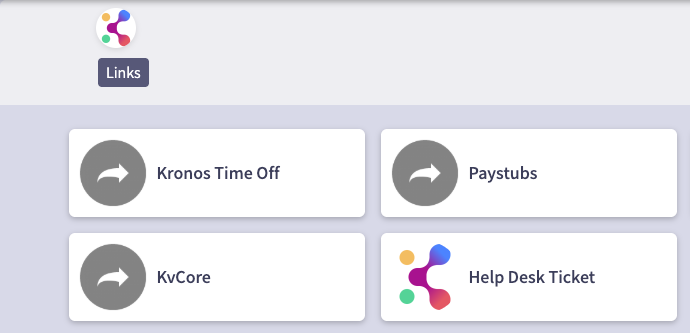
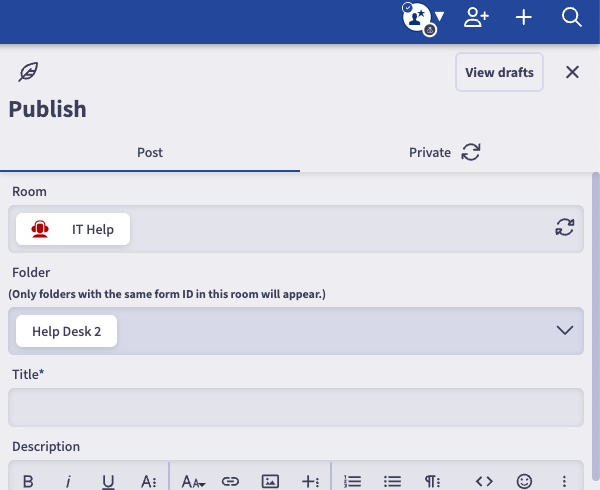
And I'll be taken directly to the post creation form:
To create this link, you'll first need the room ID and folder ID you want to direct users to. To access these number, go to the room and select the desired folder. If this is a help desk room, select the "open tickets" option under the desired folder. The URL will look like this: https://enterprisedemo.konverse.com/rooms/78036?folder=openFolderTickets-220568
In this example, the room ID is 78036 and the folder ID is 220568.
Next, locate the "plugins" by searching in the "find rooms" search bar in the left hand navigation. Click on "New Link", set your security on who can view the link, add a label (e.g. Help Desk Ticket), then click on "show more."
Uncheck the box next to "Is it external link ?" and then in the route field, you'll add the following:
/rooms/ROOMID?folder=FOLDERID#addPost
Update this route with the room ID and folder ID captured above, so the route now reads:
/rooms/78036?folder=220568#addPost
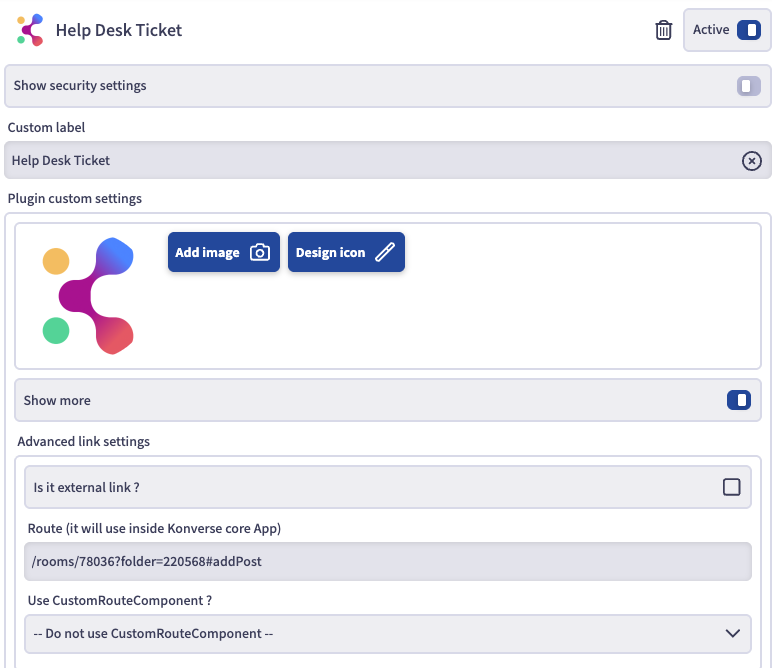
Then "save." This link will automatically appear at the end of your left hand navigation, so you may want to move it, or hide it (if you are putting it into a collection).
Adding a link to the room description:
If you also want to add a link in the room description which will automatically open the post creation form, click on the link you just created (from the left nav or collection) and copy that URL (e.g. https://enterprisedemo.konverse.com/rooms/78036?folder=126668#addPost)
OR - just follow the above format with your own domain and room/folder ID's
Click to edit your room description, and paste the URL directly into the room description field - OR create a hyperlink with above URL:
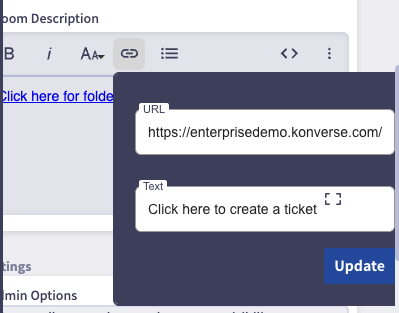
Then "save." Now users can click directly from the room description to open a post creation form.